
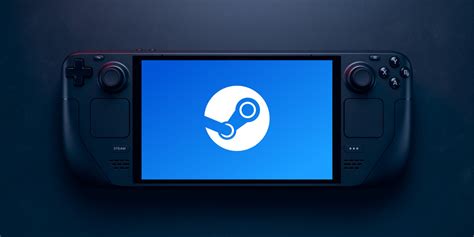
The Steam Deck has revolutionized the world of gaming, offering an unparalleled level of portability and flexibility. As a device that combines the best of both worlds – the convenience of a handheld console and the power of a PC – it's no wonder that gamers are eager to get the most out of their Steam Deck. With its unique design and feature set, mastering the Steam Deck requires a combination of technical know-how and gaming savvy. In this comprehensive guide, we'll delve into 41 expert-level tips to help you unlock the full potential of your Steam Deck, covering everything from performance optimization to controller customization.
Getting Started with Steam Deck

Before diving into the advanced tips, it’s essential to cover the basics. The Steam Deck’s operating system, SteamOS, is designed to be user-friendly, but there are a few things to keep in mind when setting up your device. First, make sure to update your Steam Deck to the latest software version, as this will ensure you have access to the latest features and bug fixes. Next, familiarize yourself with the device’s controls, including the touchpad, joystick, and face buttons. Finally, take some time to explore the Steam Deck’s interface, including the library, store, and settings menus.
Key Points
- Update your Steam Deck to the latest software version for the best experience
- Familiarize yourself with the device's controls and interface
- Explore the Steam Deck's library, store, and settings menus to get started
- Consider customizing your controller layout to suit your gaming style
- Keep an eye on your Steam Deck's storage space and manage it effectively
Performance Optimization
One of the most critical aspects of getting the most out of your Steam Deck is optimizing its performance. This can be achieved through a combination of adjusting the device’s settings and using certain software tweaks. For example, you can adjust the Steam Deck’s frame rate cap to prioritize performance or power saving, depending on your needs. Additionally, you can use the device’s built-in FPS counter to monitor your game’s performance and make adjustments accordingly.
| Performance Optimization Tips | Description |
|---|---|
| Adjust Frame Rate Cap | Prioritize performance or power saving depending on your needs |
| Use FPS Counter | Monitor your game's performance and make adjustments accordingly |
| Close Unnecessary Apps | Free up system resources to improve performance |

Controller Customization

The Steam Deck’s controller is one of its most unique features, offering a level of customization not seen on other gaming devices. By using the Steam Deck’s built-in controller customization options, you can tailor your gaming experience to suit your preferences. For example, you can remap the controller’s buttons, adjust the sensitivity of the joysticks, and even create custom controller profiles for different games.
Storage Management
With the Steam Deck’s limited storage capacity, managing your game library and storage space effectively is crucial. This can be achieved through a combination of deleting unused games, using external storage devices, and optimizing your game installations. For example, you can use the Steam Deck’s built-in storage management tools to identify and delete games that are no longer needed, or use an external hard drive to store your larger game collections.
By following these tips and tricks, you can unlock the full potential of your Steam Deck and take your gaming experience to the next level. Whether you're a seasoned gamer or just starting out, the Steam Deck offers a unique and exciting way to play your favorite games, and with the right knowledge and expertise, you can get the most out of this incredible device.
How do I optimize my Steam Deck’s performance for demanding games?
+To optimize your Steam Deck’s performance for demanding games, try adjusting the frame rate cap, closing unnecessary apps, and using the device’s built-in FPS counter to monitor performance. You can also consider using external cooling solutions or adjusting the device’s power settings to prioritize performance.
Can I use my Steam Deck as a PC replacement?
+While the Steam Deck is an incredibly powerful device, it may not be suitable as a full PC replacement for everyone. However, it can be used for a variety of tasks beyond gaming, such as browsing the web, streaming video, and even productivity work. Ultimately, the Steam Deck’s suitability as a PC replacement will depend on your individual needs and preferences.
How do I customize my Steam Deck’s controller layout?
+To customize your Steam Deck’s controller layout, go to the device’s settings menu and select “Controller” or “Input”. From there, you can remap the controller’s buttons, adjust the sensitivity of the joysticks, and even create custom controller profiles for different games.